
The job listing you have requested has expired. Please view all our current job listings.
Search Help
Updated 9th January 2026 – Added Geo location search function!
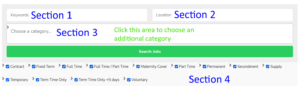
Our search function is made up of four sections.
Section 1 – Keywords Field – This is the most powerful and is the superior section of our search function.
You can type in either a single word or phrase e.g:
To find our jobs in the Diocese of Northampton, type “Northampton” into the Keywords field, and all jobs, teaching and non-teaching, will be displayed.
To find employers offering a Cycle to Work Scheme type “Cycle to Work Scheme” into the Keywords field and all jobs teaching and non-teaching will be displayed.
You can also type in a town name or county, we would recommend using the Keywords field if searching for a particular town or county.
Section 2 – Location Field
How do I find jobs for my location?
Start your search by entering one of the following: your “street address, postcode, town, or region “(i.e., Greater Manchester or South East, etc.). Into the Location field (section two).
Now select the radius by clicking on the “Choose your search radius” field and selecting the number of miles/kilometres.
Then click on the “Search Jobs” bar to find all available jobs.
On all jobs found, you will see a grey bar displaying the number of miles/kilometres from the location you entered in the Location field.
You can change miles to kilometres by clicking the “miles” field and selecting kilometres.
You can also sort your results by distance or date. Newer jobs will be displayed first. By clicking in the “Sort” field.
The default settings are Miles and Distance
To search by the address of the establishment as provided by the employer.
You can enter the street name, town, county or postcode of the establishment you are seeking.
The result displayed will depend on the data the employer has entered when creating the job listing.
We would recommend using the Keywords field to fulfil your search requirements.
Section 3 – Choose a category – The second most useful and powerful search function.
Leadership roles
To search for Leadership roles, click in this field and scroll down until you find “Role: Leadership” this will display all Leadership roles.
You can now add another category to this search. You can now add an option from “Phase: ” To add another option click on the white area as in the image above. Once clicked scroll through until you find the “Phase: ” you are looking for. You can only add one “Phase – ” per search.
To refine your search further you can also choose adding if the establishment is an Academy, CMAT, CET, Independent etc.
Teaching positions
If you are searching for teaching positions, click in this field and scroll down until you find “Role: Teaching / Lecturing” this will display all teaching roles.
You can now add another category to this search. You can now add an option from “Phase: ” To add another option click on the white area as in the image above. Once clicked scroll through until you find the “Phase: ” you are looking for. You can only add one “Phase – ” per search.
To refine your search further you can also choose adding if the establishment is an Academy, CMAT, CET, Independent etc.
Non-Teaching positions (Schools/Colleges)
If you are searching for Non-Teaching positions (Classroom-based), click in this field and scroll down until you find “Role: Pupil Support” this will display all Non-Teaching positions supporting in the classroom or an individual pupil or group of pupils.
If you are searching for Non-Teaching positions, click in this field and scroll down until you find “Role: School Support” this will display all Non-Teaching positions supporting the school or CMAT/CET normal office, estate positions.
You can now add another category to this search. You can now add an option from “Phase: ” To add another option click on the white area as in the image above. Once clicked scroll through until you find the “Phase: ” you are looking for.
You can only add one “Phase: ” per search.
To refine your search further you can also choose adding if the establishment is an Academy, CMAT, CET, Independent etc.
Positions in Catholic Dioceses, Parishes and Voluntary organisation
Click in this field and scroll down and choose from one of the following options:
Sector: Diocese
Sector: Parish
Sector: Voluntary organisation
This will display all the current job listings for your chosen sector.
Only categories with job listings posted to them are visible for searching.
Section 4 – Job Type Filters
By default, all Job Types are turned on. To turn off, untick the Job Types that do not apply.
To Reset and start a new search, click on “Reset” at the bottom right of Section 4. This option only shows once a search has been performed.
To close this window scroll to the top and click on the White ” – ” on the title bar